Showing posts with label web tools. Show all posts
How to use Google Fonts : how to download and use google fonts on PC
fonts
,
Graphic design
,
how to
,
Tutorials
,
Type
,
Typography
,
Web design
,
Web designer
,
web tools
Google Fonts according to me is the best thing ever that could happen. Really I mean they are amazing and on top of it they are FREE.

Google fonts provides a large collection of fonts on https://fonts.google.com/ Any design project be it web or graphic need to have good typography. Typography is an important element of design. It makes your design beautiful and professional. Hence it is crucial to choose your fonts wisely. There are hundreds and thousands of fonts but not all can be used in any design project. Every project has a nature of its own and so do fonts. Font have to selected according to nature of the project. Google provides open source designer web fonts that can be used in any design project no matter where you are.

Google fonts provides a large collection of fonts on https://fonts.google.com/ Any design project be it web or graphic need to have good typography. Typography is an important element of design. It makes your design beautiful and professional. Hence it is crucial to choose your fonts wisely. There are hundreds and thousands of fonts but not all can be used in any design project. Every project has a nature of its own and so do fonts. Font have to selected according to nature of the project. Google provides open source designer web fonts that can be used in any design project no matter where you are.
In this tutorial you will learn:
- How to download google fonts on pc
- How to install google fonts on pc
Let's see how to download and use google fonts,
 1) Open up https://fonts.google.com/ in your browser.
You will see all the fonts listed.
You can customize the interface if you are sure of what you want.
The right side column allows you to narrow down the listings to serifs, sans serif, display, handwriting or monospace.
You can also sort the fonts as per trending, Popular, Date added or in alphabetical order. Best part is you can also choose the language you want. Google fonts are also available in many languages.
Sliders allows you to see the fonts according to style, thickness, slant or width that you set.
2) Choose the font you like. Once you decide to select the font click on the + icon in the upper right corner.

The font will get listed in the Family selected tab in the bottom right corner of the window.

You will see all the fonts listed.
You can customize the interface if you are sure of what you want.
The right side column allows you to narrow down the listings to serifs, sans serif, display, handwriting or monospace.
You can also sort the fonts as per trending, Popular, Date added or in alphabetical order. Best part is you can also choose the language you want. Google fonts are also available in many languages.
Sliders allows you to see the fonts according to style, thickness, slant or width that you set.
2) Choose the font you like. Once you decide to select the font click on the + icon in the upper right corner.

The font will get listed in the Family selected tab in the bottom right corner of the window.


3) Copy the link in the family selected tab and head over to your html file.
 Place the code between your head tag.


4) Go back to browser and copy the second link and head back over to your CSS file.
 Paste the link where you want to use the font.

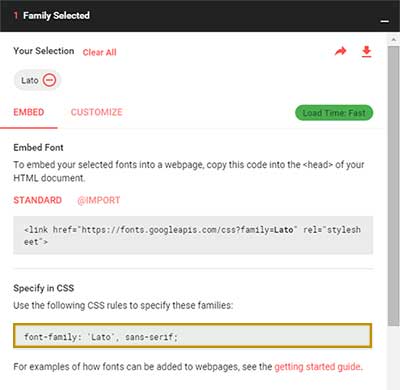

By default only the regular font is added to the script. If you want more styles you need to click on customize and select the styles you need. Click on the styles you want and the code will get updated then go ahead and copy the link as explained above.


Remember don't add all the styles. Use only the ones you need as it will increase the load time. In this example since only one style was selected the load time is fast. As you go on adding more styles you will see that the load time increases.

You can also download the font and use on your PC. Just click on the download icon in the Family selected tab and it will get downloaded to your PC. Install the font like any other font.

So that's all it is to using Google Fonts and install google fonts windows. As simple as eating a cake. Use them to make your websites beautiful and professional.

Practice and play around with these Fonts and 1 day you will be able to create awesome art with it in a professional manner and become a Really Creative Graphic Designer.
Become An Artist With AutoDraw
Drawing
,
Graphic design.
,
how to
,
Tutorials
,
web tools
AutoDraw is an online tool by Google. It helps you draw and the software tries to guess what you are drawing.

It is machine learning based experiment ie what machine have learned from us. It is really fun and easy to use. You do not have to an artist autodraw make you an Artist. It helps you make cards,messages,etc easily and quickly. You do not have to waste your time in searching cards that fit your requirements simply make one yourself. You do not have to pay anything nor do you have to download anything. Its an online free tool so that any one can become an artist.
Let's start,
Open up this site www.autodraw.com
Once it opens you see an interface similar to paint. All you have to do is select the autodraw tool second icon with pencil having stars and start drawing. so first lets draw a house.

It tries to guess your drawing the minute you start drawing. On top it lists all the guess it has for your drawing.

See there is a house click on it and you have a perfect house drawing. Great isn't it. There are many options to choose from select the type of house you want.
 There are 6 tools in auto draw. They are :
1) Select: used to select,resize,move or rotate the objects you create.
2) AutoDraw: Used to draw which then tries to guess what you have drawn.
3) Draw: lets you draw your own creation without guessing.
4) Text: Lets you add text to your artwork.
5) Fill: Lets you add color to object.
6) Shape: lets you create circle,square and triangle.
There are also tools for zoom,Undo and deleting an object.
OK now lets draw a fish
 Yes that is a fish and see how well the software guessed it!

Now lets draw a dragon and see if it can guess it right. This of course is not a good doodle of a dragon but just see.
 Wow the first 3 guess are perfect. Yes it is a dragon.

 Coloring is also as simple as doodling. Select the fill tool from the tools pallet and simple click inside the shape. If you want to change the stroke color select the fill tool and choose the color you want and then click on the stroke.
 Remember complete the drawing and select the guess, if you select some other tool and come back to your drawing it looses its track. you will have to redraw it. Draw select the guess and only then move away. Once your drawing is done you can select the select tool and move, resize or rotate the object.

You can also create fun character in this with some experiments.
 You can create good scenery with it.

So that is Autodraw. It really impressive with further development I am sure it will turn out to be among top software's or tool or AI experiments whatever you can call it. I really had fun playing with hope you do too. Please don't forget to share your creations with me on twitter and pintrest.
If you like my tutorials and posts follow me on twitter and pintrest.

It is machine learning based experiment ie what machine have learned from us. It is really fun and easy to use. You do not have to an artist autodraw make you an Artist. It helps you make cards,messages,etc easily and quickly. You do not have to waste your time in searching cards that fit your requirements simply make one yourself. You do not have to pay anything nor do you have to download anything. Its an online free tool so that any one can become an artist.
Let's start,
Open up this site www.autodraw.com
Once it opens you see an interface similar to paint. All you have to do is select the autodraw tool second icon with pencil having stars and start drawing. so first lets draw a house.

It tries to guess your drawing the minute you start drawing. On top it lists all the guess it has for your drawing.

See there is a house click on it and you have a perfect house drawing. Great isn't it. There are many options to choose from select the type of house you want.

1) Select: used to select,resize,move or rotate the objects you create.
2) AutoDraw: Used to draw which then tries to guess what you have drawn.
3) Draw: lets you draw your own creation without guessing.
4) Text: Lets you add text to your artwork.
5) Fill: Lets you add color to object.
6) Shape: lets you create circle,square and triangle.
There are also tools for zoom,Undo and deleting an object.
OK now lets draw a fish


Now lets draw a dragon and see if it can guess it right. This of course is not a good doodle of a dragon but just see.


You can also create fun character in this with some experiments.

So that is Autodraw. It really impressive with further development I am sure it will turn out to be among top software's or tool or AI experiments whatever you can call it. I really had fun playing with hope you do too. Please don't forget to share your creations with me on twitter and pintrest.
If you like my tutorials and posts follow me on twitter and pintrest.
Lets have fun with Pix2Pix
Today I am going to play around with Pix2Pix. Its a online program that transforms your doodles into images. Actually the site is http://fotogenerator.npocloud.nl/ but its called Pix2Pix.

All you have to do is just make a doodle then click process and magically the program transforms it into a image. To be honest Magical most of the time is actually a Shock. At times its funny but be ready to bear the shock after hitting that process button. The opening screen has an impressive art made by someone but don't get overenthusiastic about it. If you some how manage to make an awesome artwork Please Please don't' forget to share it with me.
Let's have some fun, I am using mouse so its hard for me to get good clean line but I will have fun.
Open up the website.All you have to do is grab the line tool and start drawing.First lets see how a simple emoji type doodle gets transformed in an awesome image.

Wow creepy. Now let's try making a character.
 Hey not bad at all. It is actually making a good effort in trying to match the doodle. OK now lets move ahead clear this one and make a new character.
 Yes confused as I am right now. Look at the hairs its come out so good! OK that was pretty basic now lets try one more.
 Now that's a good one. what do you say? I am really happy with how its come. Only hairs is bleeding out in face for some reason. Really its not bad at all. This time I will try to make a bit more detailed drawing.

If you are good at drawing portraits you can achieve good results with some research and development. Try putting in some time and efforts to your portrait to get good results. I found a good video that is made by the artist claymore he has achieved the best result by far what I have seen other artist make. Here is the link to video go check it out https://youtu.be/MkDEhQznN18
In my opinion the software is at its basic stage right now so there are some workarounds needed. But with further development I think the software would turn out to be a wonder.
Have Fun and play around with the software but if if you are a serious and ambitious artist try putting in some time and efforts to actually get Magical results. Please don't forget to share your art with me on twitter and pintrest. If you like my work and tutorials follow me on twitter and pintrest.

All you have to do is just make a doodle then click process and magically the program transforms it into a image. To be honest Magical most of the time is actually a Shock. At times its funny but be ready to bear the shock after hitting that process button. The opening screen has an impressive art made by someone but don't get overenthusiastic about it. If you some how manage to make an awesome artwork Please Please don't' forget to share it with me.
Let's have some fun, I am using mouse so its hard for me to get good clean line but I will have fun.
Open up the website.All you have to do is grab the line tool and start drawing.First lets see how a simple emoji type doodle gets transformed in an awesome image.

Wow creepy. Now let's try making a character.


If you are good at drawing portraits you can achieve good results with some research and development. Try putting in some time and efforts to your portrait to get good results. I found a good video that is made by the artist claymore he has achieved the best result by far what I have seen other artist make. Here is the link to video go check it out https://youtu.be/MkDEhQznN18
In my opinion the software is at its basic stage right now so there are some workarounds needed. But with further development I think the software would turn out to be a wonder.
Have Fun and play around with the software but if if you are a serious and ambitious artist try putting in some time and efforts to actually get Magical results. Please don't forget to share your art with me on twitter and pintrest. If you like my work and tutorials follow me on twitter and pintrest.
Subscribe to:
Posts
(
Atom
)